Odoo 20 · CRM, Sales & VoIP
Odoo 20 brings several changes to quotation management: sections carry a quantity, quotations and sections can be saved as templates, and the margin can be edited directly on the line. In CRM, the rotation rule is set for each salesperson and a switcher lets you move from one team's pipeline to another's. The Phone app now includes a graphical call flow designer for the switchboard.
Contents: 13 feature sheets
- Three automatic lead assignment modes are available for each salesperson
- A switcher lets you move from one team's pipeline to another's
- Lead generation modes are grouped in a single menu
- A customer's subscriptions are accessible from their lead
- A section's quantity updates all of its lines
- A quotation or a section can be saved as a reusable template
- A quotation line can have a description with no linked product
- A dashboard of sales indicators sits above the quotation list
- The margin is editable on the line and the sales price is recalculated
- Temporary prices can be viewed on a calendar
- The minimum quantity of a price rule now comes with a unit
- The switchboard is configured in Odoo using a graphical designer
- The softphone displays the active number and recent calls first
CRM
Three automatic lead assignment modes are available for each salesperson
On a team member's form: a 30-day lead capacity (“Capacity”) and a checkbox to pause assignment (“Pause assignment”). There is no unlimited mode.
A single field, “Auto-Assignment Rules”, with three choices: “Always in rotation”, “In rotation with a limit” (of N leads per 30 days) or “Out of rotation”. The filters become “Give priority if” and “Only assign if”. The fields appear only if the CRM setting “Rule-Based Assignment” is enabled.


- Belgian use case
- A Namur brewery distributes its website leads among three salespeople. The salesperson on leave is set to “Out of rotation”, then returns to “In rotation with a limit” of 30 leads per month, without having to re-enter their filters.
- Source
- Odoo 20 release notes, CRM section, “Lead distribution”.
A switcher lets you move from one team's pipeline to another's
The pipeline has a fixed title, “Pipeline”. Cards show no team badge.
A dropdown replaces the title: “All Teams”, then each team, then “Manage Teams”. In the “All Teams” view, each card carries the badge of its team.


- Belgian use case
- The sales director of a Brussels SME follows the “Sales” team and the “Pre-Sales” team from the same screen. He immediately sees which team each opportunity belongs to.
- Source
- Odoo 20 release notes, CRM section, “Pipeline switcher”. Official Odoo video, 7:00 ↗ ; keynote, 1:00:17 ↗.
Lead generation modes are grouped in a single menu
A “Generate Leads” button opens a single wizard: number of companies, countries, industries and size filter. Targeting by country, industry and size therefore already existed.
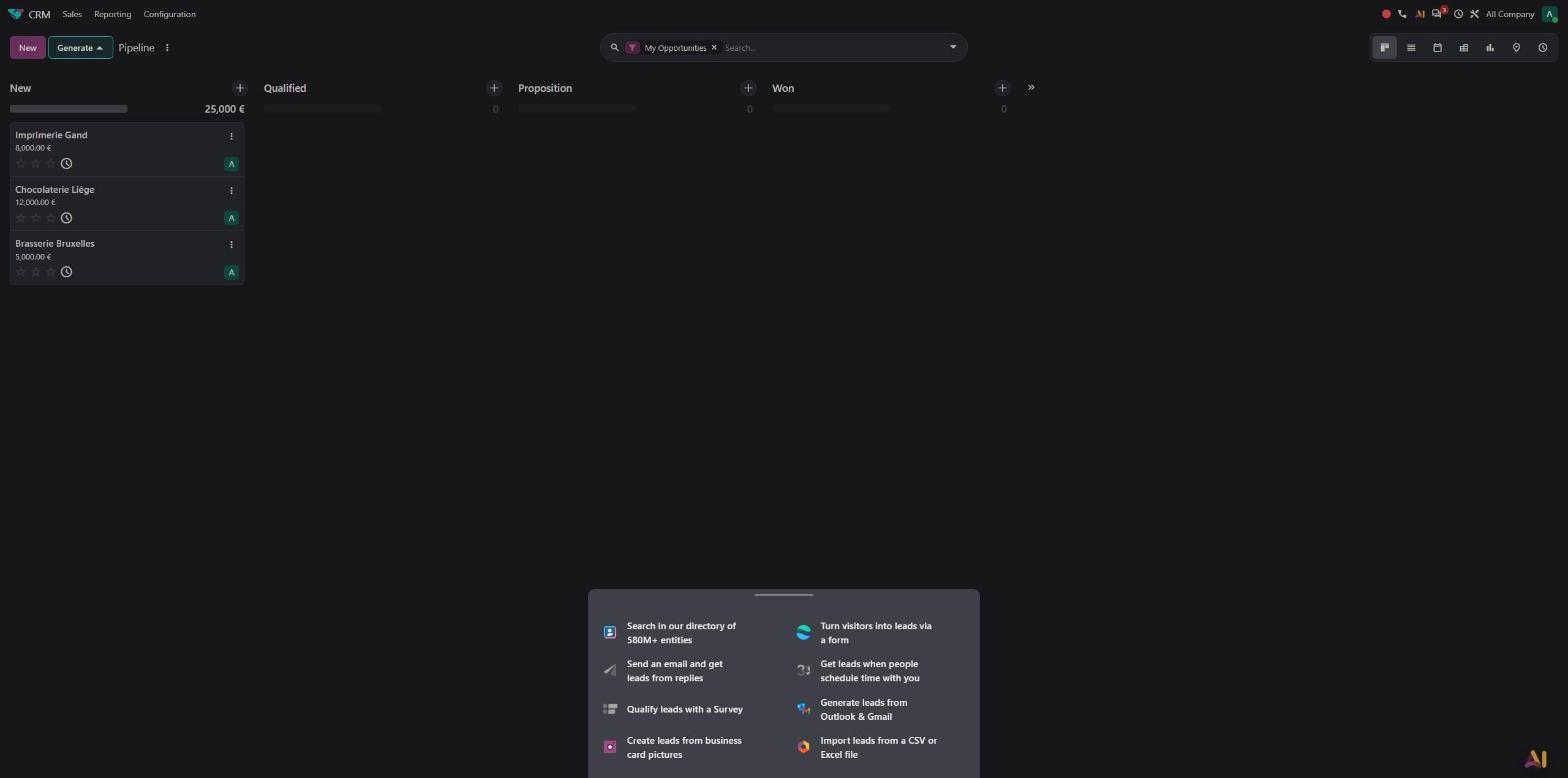
The “Generate” button opens a menu of 8 modes: search in a directory of more than 580 million entities, website form, email replies, survey, appointment booking, Outlook and Gmail, business card photo, CSV or Excel import. The directory wizard keeps targeting by country, industry and size.

- Belgian use case
- A Liège SME chooses its lead source in one place: the directory to target Belgian breweries with 1 to 100 employees, or its website form for its visitors.
- Source
- Odoo 20 release notes, CRM section, “Lead generation” (“The Generate Leads feature now suggests more ways to generate leads”). Official Odoo video, 13:01 ↗ ; video, 1:20 ↗ ; webinar, 9:05 ↗.
A customer's subscriptions are accessible from their lead
A customer's subscriptions are not accessible from their leads.
According to the release notes, a customer's existing subscriptions are accessible from their leads. Upsell and renewal quotations are created from these subscriptions and are automatically linked to the opportunity.
- Belgian use case
- A Belgian software publisher receives a licence extension request from a subscribed customer. The salesperson creates the upsell quotation from the lead, without having to search for the subscription.
- Source
- Odoo 20 release notes, CRM section, “Upsells from lead”. Webinar, 14:40 ↗.
Sales
A section's quantity updates all of its lines
A section has no quantity or unit: only its name can be edited.
The section carries a quantity and a unit. Changing the section's quantity updates all the lines it contains.


- Belgian use case
- An installer prices the equipment for a brewhouse, then the customer orders three. The section quantity changes to 3 and the lines are updated: the total excl. VAT goes from €1,020 to €3,060.
- Source
- Odoo 20 release notes, Sales section, “Quotation sections”. Official Odoo video, 7:24 ↗.
A quotation or a section can be saved as a reusable template
Quotation templates are created from the configuration, after enabling the “Quotation Templates” setting. The template form has no type. No action turns a quotation or a section into a template.
The “Save as template” action turns any quotation into a template. The section menu also offers “Save as Template”. The template has a type: “Quotation” or “Section”. The “Quotation Templates” setting no longer exists: the feature is always available.


- Belgian use case
- An installer saves the “Brewhouse installation” section as a template. He reuses it in every brewery quotation, without retyping the same lines.
- Source
- Odoo 20 release notes, Sales section, “Quotation sections” (“Save sections as templates”) and “Quotation templates” (“Save as template” action). Official Odoo video, 7:05 ↗ ; keynote, 1:17:40 ↗.
A quotation line can have a description with no linked product
The column is called “Product”. Text entered without an existing product only offers to create a product.
The column is called “Description”. A line can be created with a description alone, with no linked product. The “Mandatory Product” setting, disabled by default, makes it possible to enforce a product.


- Belgian use case
- An installer adds a €450 labour package without creating an item in the catalogue. The company that wants to keep statistics per item enables “Mandatory Product”.
- Source
- Odoo 20 release notes, Sales section, “Description-only sales order lines”. Official Odoo video, 4:59 ↗.
A dashboard of sales indicators sits above the quotation list
The quotation list is not preceded by any dashboard.
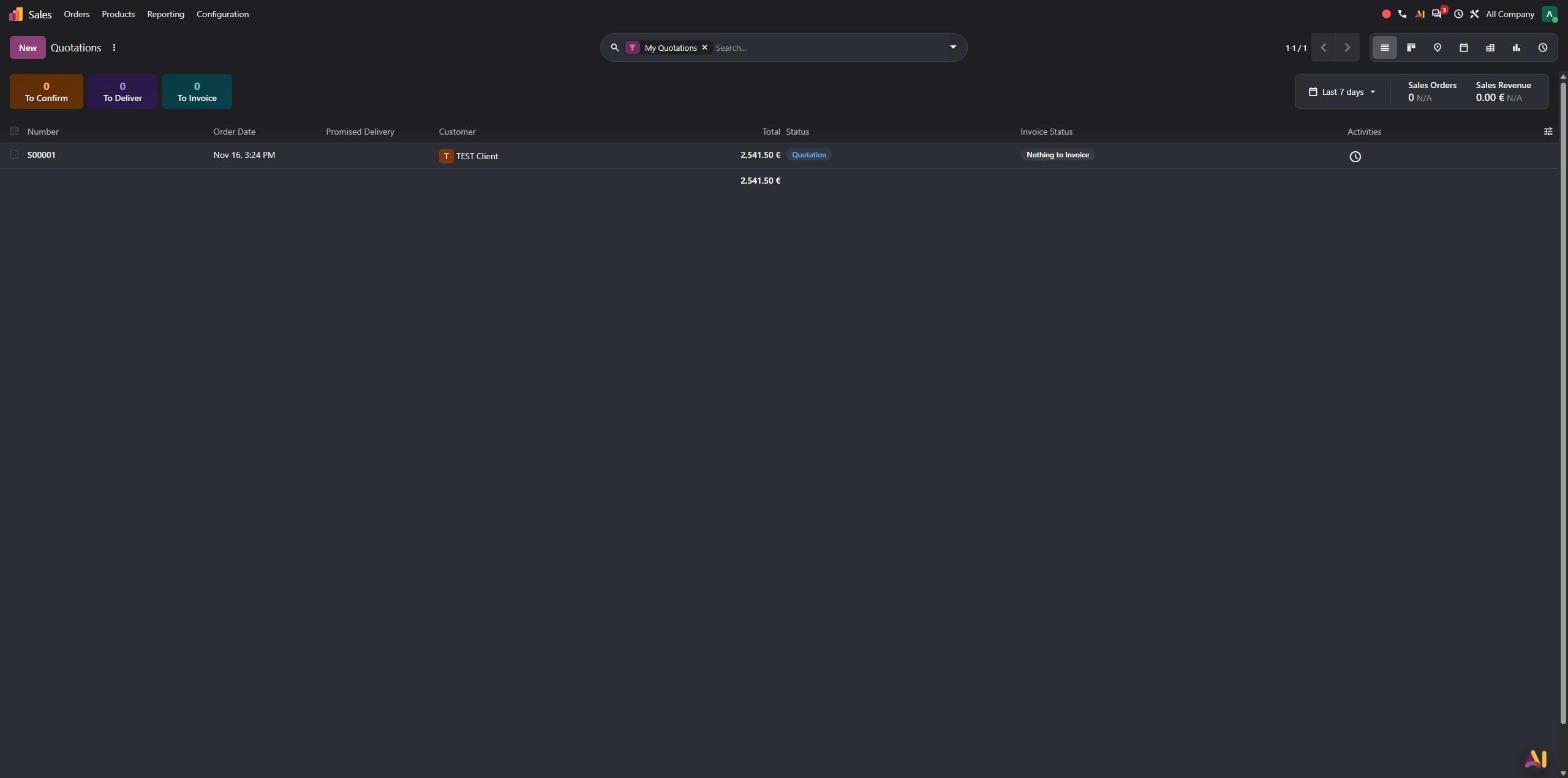
A dashboard sits above the quotation and order lists: “To Confirm”, “To Deliver” and “To Invoice” buttons, plus orders and revenue over a period of your choice (last 7 days by default).

- Belgian use case
- On opening her quotations on Monday, the salesperson sees which quotations are to be confirmed, delivered and invoiced, and filters the list using the relevant indicator.
- Source
- Odoo 20 release notes, Sales section, “Dashboard”. Official Odoo video, 10:38 ↗.
The margin is editable on the line and the sales price is recalculated
With the “Margins” setting enabled, the “Margin” column is displayed as read-only.
The margin is displayed below the unit price and can be edited: the sales price is recalculated automatically. The “Margins” setting no longer exists.


- Belgian use case
- A beverage distributor wants a €200 margin on the installation of a beer tap that costs €300: they enter the margin and the sales price goes to €500.
- Source
- Odoo 20 release notes, Sales section, “Editable margins” and “Stacked fields on sales order lines”. Official Odoo video, 5:46 ↗.
Pricing
Temporary prices can be viewed on a calendar
A pricelist rule has a start date and an end date. Recurring prices are in a separate tab. There is no calendar view.
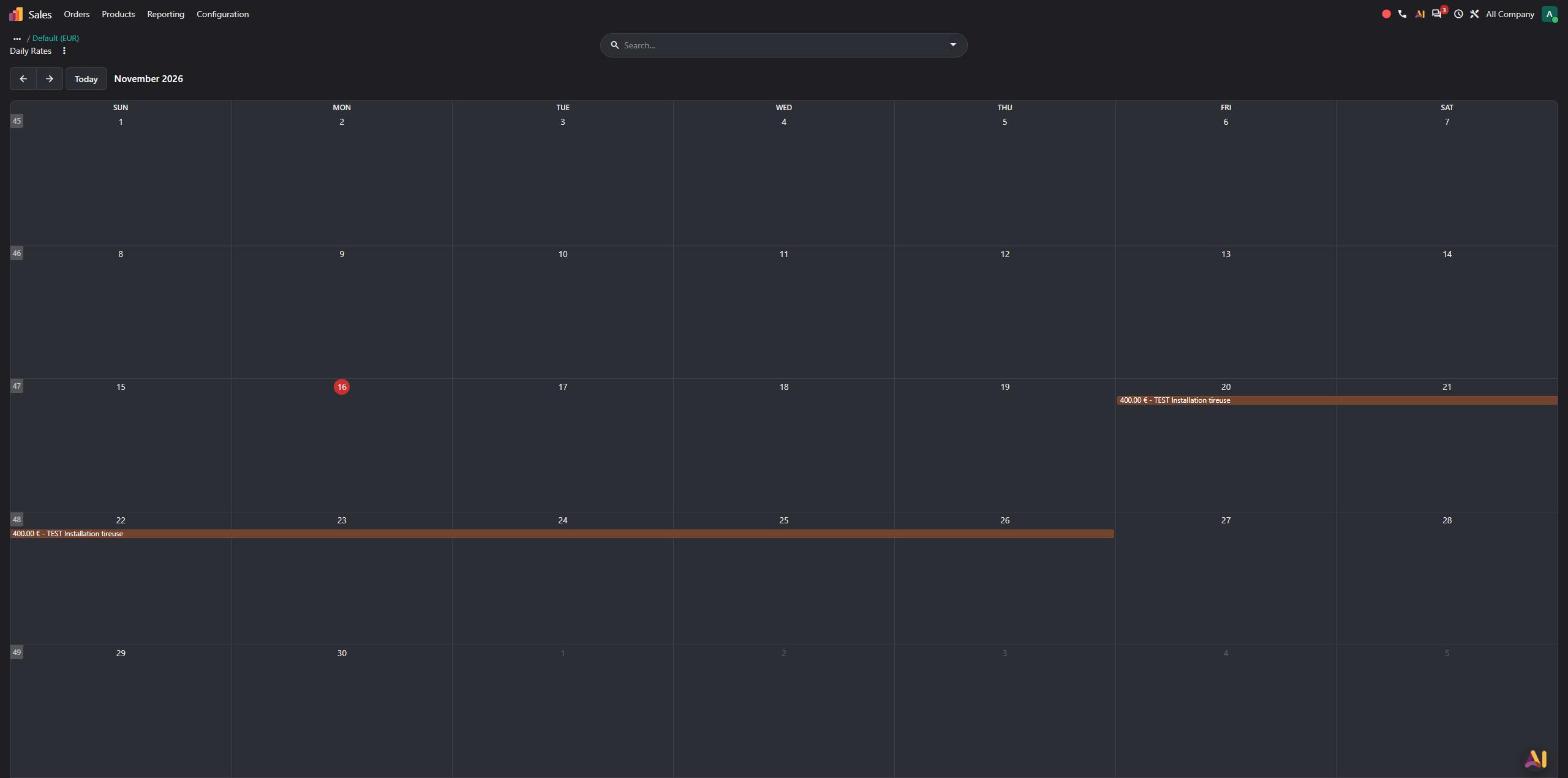
The pricelist has a “Daily Rates” button that displays its rules on a calendar. The rules are gathered in a single tab, with a “Plan” column (recurring plan) and a validity period entered as a range. According to the release notes, rules can also apply to certain days of the week.


- Belgian use case
- A brewery sells its 30 L keg at €110 instead of €120 during the Christmas markets, from 20 to 26 November. The salesperson checks the promotion on the calendar before preparing a quotation.
- Source
- Odoo 20 release notes, Sales section, “Periodic pricing”; Rental section, “Simplified and unified pricelists”. Official Odoo video, 12:31 ↗.
The minimum quantity of a price rule now comes with a unit
The fixed price of a rule already carries a unit (“per Units”). The minimum quantity, however, is expressed in the product's default unit (field tooltip).
A unit now also appears next to the minimum quantity (“Minimum Quantity”). According to the release notes, price rules can also be defined per packaging type.


- Belgian use case
- A beverage distributor grants a price from a certain number of kegs, expressed in the rule's unit. According to the release notes, the price can also be defined per crate or per pallet, when the corresponding packaging is configured.
- Source
- Odoo 20 release notes, Sales section, “Price rules per packaging type”. Official Odoo video, 12:02 ↗ ; webinar, 26:40 ↗.
Phone
The switchboard is configured in Odoo using a graphical designer
The Phone configuration contains only “Providers”: the switchboard is managed at the carrier.
A “PBX” section appears in the configuration: Extensions, Call Flows, Time Conditions, Groups, Menus, Queues, Voice Mailboxes, Sounds, Music on Hold. The graphical designer lets you chain 11 types of steps, including “Call a group”, “Open a menu”, “Time condition” and “Send to voicemail”.


- Belgian use case
- The switchboard of a Brussels SME: a voice menu routes callers to the sales group or to support, and a time condition sends calls outside office hours to voicemail.
- Source
- Odoo 20 release notes, Phone section, “Call flow designer”. Official Odoo video, 16:36 ↗.
The softphone displays the active number and recent calls first
The softphone opens in “Demo Mode” and displays the keypad first.
The softphone displays at the top the number in use (here “No number”), a contact search and recent calls first. The keypad tab comes next. According to the release notes, the softphone can also open as a floating, draggable widget.


- Belgian use case
- A salesperson calls back a customer from the day before using the recent calls list, without re-entering the number.
- Source
- Odoo 20 release notes, Phone section, “Floating widget”. Official Odoo video, 10:36 ↗.
Minor new features
CRM
- Address hidden on the lead, to encourage creating a contact
- Gmail and Outlook plugins: search for a contact or a task, choose the relevant recipients
Sales
- Sales order line numbering
- Product images on orders and their PDFs
- Redesigned quotation view
- “Benefits” section: the customer sees the total savings made
- Services & Material: fixed-price or cost-based services and materials for re-invoicing
- Expense re-invoicing
- Fixed-amount down payment
- Order marked “fully invoiced”
- Redesigned sales order portal page
- Import of purchase orders received from customers: the sales order created reflects corrections made to previous orders
- Shipping without the Inventory app (“Deliver” action on the quotation)
- Commissions calculated on the amount paid
- Manager commissions: contributors' achievements and targets rolled up into other salespeople's commissions, including split commissions
- Invoicing of prepaid service overages, from the invoicing wizard
- Single-use discount codes: one use per customer
- Loyalty point expiration
- Customer reference in the subject and body of the order email
- Multi-line section descriptions
- Selecting a quotation template directly when creating a sales order
- Subscription loyalty programmes: rules and rewards
- The Tax Included / Tax Excluded toggle on orders: see Finance & Accounting
Pricing
- Unit or packaging chosen when adding from the catalogue
- Attribute extras added to fixed-price rules
- Variant sales price editable directly
- Pricelist report grouped by category and filterable by date
Phone
- Choose the outgoing number from several numbers
- Automatic filling and logging of the current record's number
- Audio settings during a call
- Simultaneous calls
- Transfer of an ongoing call to another device
- Push notifications for incoming calls
- “On a call” status visible in Discuss
- Linphone set-up by QR code
- Call logging in the chatter, during or after the call
- Call transcription
- Buying numbers in Odoo