Odoo 20 · Manufacturing & Inventory
Odoo 20 improves visibility over the shop floor and over stock. Manufacturing orders (MOs) and work orders (WOs) are scheduled in Kanban views, and production progresses operation by operation. MO cost is tracked from launch to closing. For inventory, Odoo suggests minimum and maximum levels, and a single report traces a lot from the vendor to the customer. Companies in a group resupply each other through routes. Buyers keep each vendor's Incoterm and promised date.
Contents: 25 feature sheets
- Production progresses operation by operation, without waiting for the MO to finish
- Work orders can be scheduled in Kanban and Gantt views
- The MO Kanban groups orders by week and shows the planned workload
- A single “Produce” button and flexible consumption for all MOs
- MO cost is provisional while the MO is in progress, then actual at closing
- BoM comparison and extra cost on the bill of materials
- A component can be replaced in all bills of materials from “Used In”
- A cancelled MO can be reset to draft and an ongoing MO can be split
- The subcontracting MO overview shows the stock held at the subcontractor
- The work center can be identified by barcode in Shop Floor
- A single report brings together the changes of an ECO and their impact on costs
- The version update is optional and the ECO can create new products
- A single traceability report, from vendor to customer
- Suggested minimum and maximum levels for each reordering rule
- Flows between companies in a group rely on resupply routes
- Incoming stock can be allocated to pending orders
- The return transfer is created directly, without a wizard
- Stock can be viewed at a past date and time, with filters retained
- The CMR is generated prefilled from the delivery
- Sendcloud pickup points from the order, and a ShipStation connector
- The vendor quality rate is displayed before ordering
- The expected arrival date can be edited without altering the vendor on-time delivery calculation
- The vendor's Incoterm is carried over to every order
- A Quality admin can validate a transfer without prior checks; rejected parts are routed to a dedicated location
- Receipt batching and lot generation from the Barcode app
Manufacturing
Production progresses operation by operation, without waiting for the MO to finish
The quantity produced by a work order is shown on the WO form, read-only. The next operation stays “Blocked” until the previous one is finished.
The produced quantity (“Produced Quantity”) is entered on each work order. If “Continuous Production” is ticked on the Miscellaneous tab of the bill of materials, the next operation switches to “To Do” as soon as parts are ready.
- Belgian use case
- A joinery workshop in Wavre cuts 50 boards and then sands them. As soon as the first 10 boards are cut, sanding starts instead of waiting for all 50. In Odoo 20, on an MO for 10 boards, the Sanding WO moves from “Blocked” to “To Do” as soon as 4 boards are cut.
- Source
- Odoo 20 release notes, Manufacturing section, “Continuous production”. Odoo source code (GitHub): mrp_bom.py ↗, mrp_workorder.py ↗. Official Odoo video, 4:01 ↗.
Work orders can be scheduled in Kanban and Gantt views
Planning menu: “Planning by Production” and “Planning by Workcenter” (Gantt). The WO Kanban is a list of full-width cards, with no grouping by work center.
Planning menu: Work Orders > Planning and Kanban; Employees > Planning. The “Work Orders Planning” Kanban groups WOs by work center. Each card shows the MO, the product, the operation, the duration and the planned date. A “Plan MO” button schedules MOs. The Gantt adds automatic rescheduling (“Auto-Reschedule (Use Buffer)”), a panel of WOs to be planned and the remaining capacity of each work center. According to the release notes, the Gantt also allows drag and drop, a view by employee and confirmation of WOs from the Gantt, even when some are still in draft.
- Belgian use case
- The workshop manager of a furniture maker in Liège sees the queue of each machine and its remaining capacity. In Odoo 20, an MO for 10 boards that is planned produces one card per work center: 5 h for cutting and 3 h 20 for sanding.
- Source
- Release notes, Manufacturing section, “Work order views” and “Visualize and confirm work orders”. Odoo source code (GitHub): mrp_workorder_views.xml ↗. Official Odoo video, 22:31 ↗ (WO Kanban at 25:07); webinar, 24:19 ↗ ; keynote, 1:40:19 ↗.
The MO Kanban groups orders by week and shows the planned workload
The MO Kanban is not grouped. Each card shows the product, the quantity, the reference, the date and the status, with no remaining time.
Cards are grouped by week (“W46 2026”), with the total remaining time of the group. Each card also shows the remaining time, the component status (“Available”) and the person responsible. According to the code, the deadline appears in red when overdue and in orange on the day itself.
- Belgian use case
- On Mondays, the production manager of a food-processing SME sees the week's planned hours and spots the MOs whose components are missing. In Odoo 20, week 46 shows 8 h 20 for an MO for 10 boards, components “Available”.
- Source
- Release notes, Manufacturing section, “Manufacturing order Kanban view”. Odoo source code (GitHub): mrp_production_views.xml ↗. Official Odoo video, 13:17 ↗ ; webinar, 10:28 ↗.
A single “Produce” button and flexible consumption for all MOs
The bill of materials carries a “Flexible Consumption” setting: Allowed, Allowed with warning or Blocked. The confirmed MO has the buttons “Produce All”, “Plan”, “Start”, “Unreserve” and “Cancel”.
The setting disappears: all MOs accept a consumption different from that of the bill of materials, even when no bill of materials is selected. The confirmed MO now has only “Produce”, “Plan”, “Start” and “Cancel”; “Unreserve” moves to the actions menu. The “Produce” action consumes the components, closes the WOs and completes the MO.
- Belgian use case
- A brewery sometimes uses a little more malt than planned. The operator validates the MO in a single action and the difference remains visible, without blocking. In Odoo 20, an MO for 5 boards is completed with a single action on “Produce”, WOs included.
- Source
- Release notes, Manufacturing section, “Flexible consumption” and “Produce button”. Odoo source code (GitHub): mrp_production_views.xml ↗ ; mrp_production.py ↗.
MO cost is provisional while the MO is in progress, then actual at closing
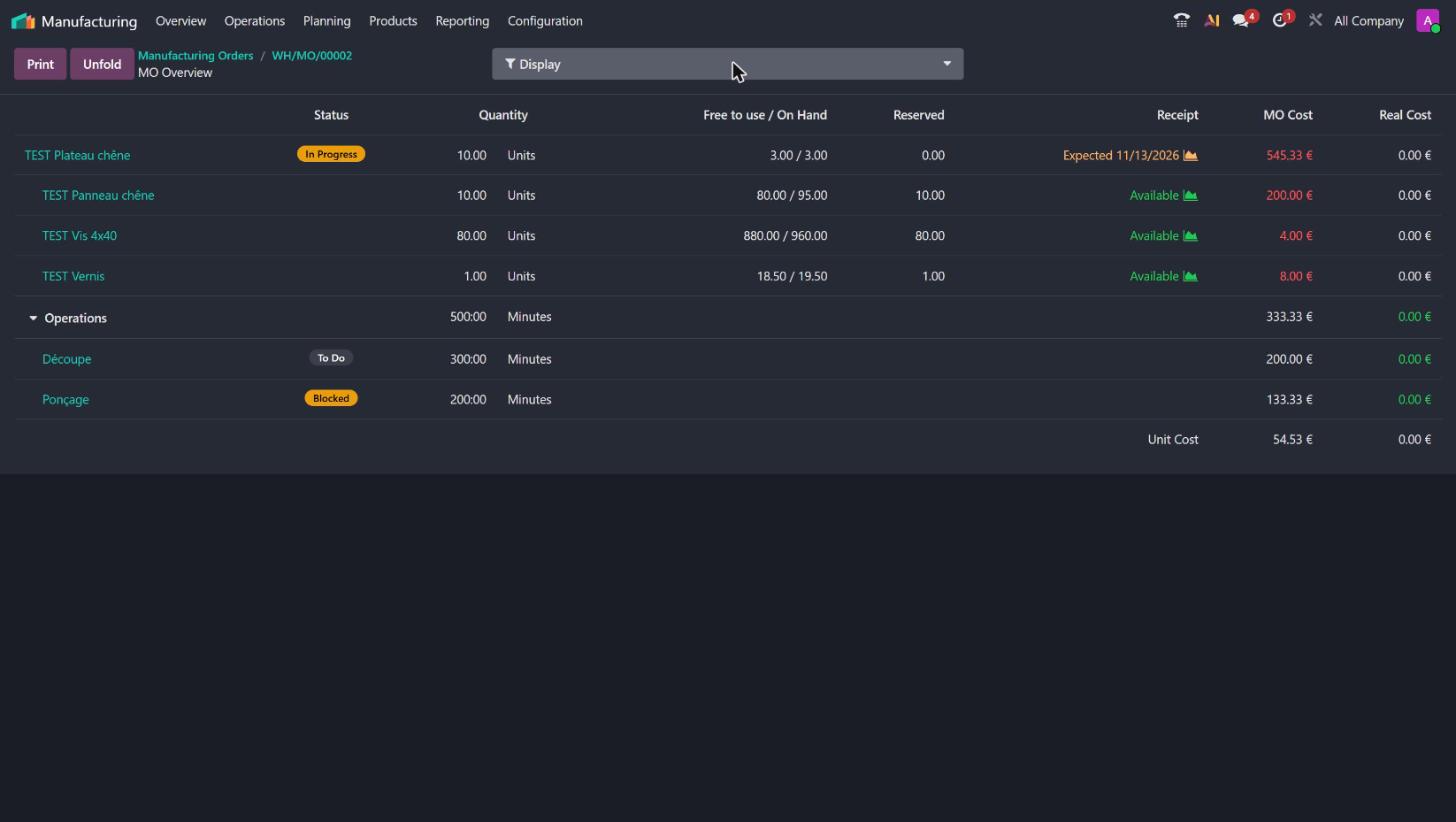
The overview of an MO shows two cost columns: “MO Cost” and “Real Cost”.
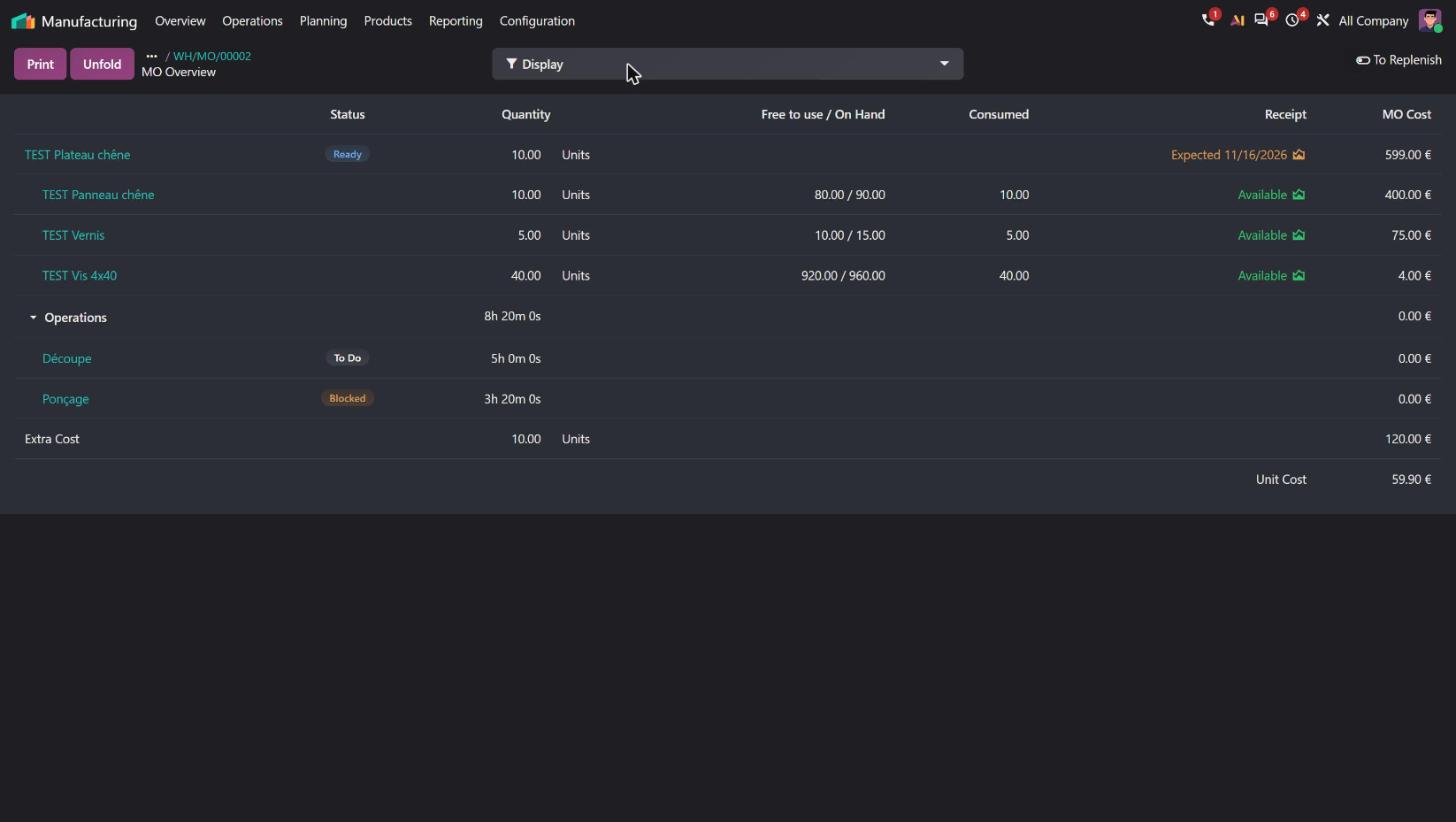
A single “MO Cost” column: provisional while the MO is in progress, actual once it is finished. The overview adds a “Consumed” column, an “Extra Cost” line (see the sheet on bill of materials comparison) and a “To Replenish” toggle. According to the release notes, in this overview, the cost of a replenished subcontracted product takes the cost of its components into account.


- Belgian use case
- A window-frame manufacturer follows an MO for 20 windows: it sees the planned cost during manufacturing and the actual cost as soon as the MO is closed, without an export. In Odoo 20, the overview of an MO in progress has only one “MO Cost” column and shows the “Extra Cost” line. On a finished MO, the “MO Cost” column replaces “Real Cost”.
- Source
- Release notes, Manufacturing section, “MO cost”. Odoo source code (GitHub): mrp_mo_overview.xml ↗ ; mrp_report_mo_overview.py ↗.
BoM comparison and extra cost on the bill of materials
No comparison: the Actions menu of bills of materials is limited to Export, Duplicate, Archive and Delete. No extra cost on the bill of materials.
The “Compare BoMs” action opens a cross table: components in rows, bills of materials in columns. An “Extra Cost” field on the Miscellaneous tab is included in the MO cost. A “Components / Sub-assemblies” button shows the exploded bill of materials. According to the release notes, the “Status” and “Availability” columns of the overview are merged.


- Belgian use case
- A kitchen manufacturer compares two cabinet variants for a customer who asks why one costs more. It adds €12 of extra cost per unit for the subcontracted surface treatment. At €12 per unit, an MO for 10 units shows an extra cost line of €120.
- Source
- Release notes, Manufacturing section, “Bill of materials”; PLM section, “BoM comparison”. Odoo source code (GitHub): mrp_bom_views.xml ↗ ; mrp_bom.py ↗. Official Odoo video, 5:38 ↗ (extra cost at 4:25); webinar, 5:16 ↗ ; keynote, 1:38:04 ↗.
A component can be replaced in all bills of materials from “Used In”
On the product form, the “Used In” button opens the list of bills of materials that contain the component.
The same button opens “Used In BoM”: the bill of materials lines concerned (finished product, component, quantity, unit). According to the release notes, they can be edited in bulk, for example to replace one screw with another in all bills of materials.
- Belgian use case
- A vendor discontinues an MDF panel reference. The design office of a fitter in Namur replaces it in the 14 bills of materials concerned in a single edit. In Odoo 20, “Used In” on a component directly lists its bill of materials lines.
- Source
- Release notes, Manufacturing section, “Component replacement”. Odoo source code (GitHub): product.py ↗ ; product.py (Odoo 19) ↗. Official Odoo video, 9:39 ↗ (on the ECO: 42:12).
A cancelled MO can be reset to draft and an ongoing MO can be split
A cancelled MO cannot go back to draft, and its quantity shows as 0. Splitting an MO in progress is refused: “Only manufacturing orders in either a draft or confirmed state can be split”.
A cancelled MO has a “Reset to Draft” button that keeps the quantity and the work orders. An MO in progress can be split from the actions menu (Split), without a wizard. The quantity already produced stays on the MO, renamed “-001”, and the balance is carried over to a backorder “-002”.
- Belgian use case
- A printing house cancels an MO for 500 brochures by mistake: it resets it to draft without re-entering everything. A breakdown stops production at 300 copies: it splits the MO and plans the remaining 200. In Odoo 20, a cancelled MO for 3 boards returns to draft with its 2 WOs. An MO for 10 in progress, of which 4 are in production, is split into 4 and 6.
- Source
- Release notes, Manufacturing section, “Reset MO to draft” and “Split manufacturing orders”. Odoo source code (GitHub): mrp_production.py ↗ ; mrp_production_views.xml ↗. Official Odoo video, 17:08 ↗ ; webinar, 15:02 ↗.
The subcontracting MO overview shows the stock held at the subcontractor
Opened from Manufacturing, the subcontracting MO already has “Overview”, “Transfers” and “Components Status”; only the component registration screen hides them. However, the overview does not show the subcontractor's stock.
The overview of the subcontracting MO adds a “Subcontractor Stock” column: you can see which components are already there and which are missing, then order the missing ones directly. According to the release notes, when no purchase order is linked, the subcontracting cost is assigned to the product on receipt, based on the vendor pricelist.
- Belgian use case
- A bicycle maker has its frames lacquered by a subcontractor in Charleroi. Before launching the order, it checks that the frames it sent have arrived. In Odoo 20, the subcontracting MO for 5 lacquered frames shows the stock at the subcontractor (0 / 0 in this example) and the expected arrival of the components.
- Source
- Release notes, Manufacturing section, “Subcontracting MO” and “Subcontracting reception valuation”. Odoo source code (GitHub): mrp_production_views.xml ↗. Official Odoo video, 11:22 ↗ ; talk zjCpwR1h98s, 21:28 and 23:22; webinar, 9:05 ↗.
Shop Floor and PLM
The work center can be identified by barcode in Shop Floor
The work center form has no barcode: in Shop Floor, the work center is chosen on screen.
A “Barcode” field on the work center makes it identifiable by barcode. According to the release notes, the work center is selected by scanning in Shop Floor. A downloadable demo sheet lets you try the full flow (badge, MO, work center, start, finish). When an instruction is edited from Shop Floor, the form shows the current instruction, prefilled.
- Belgian use case
- A mechanical subcontractor in Seraing equips its work centers with scanners. The operator scans their badge, the MO and the milling machine, without touching the screen. In Odoo 20, the work center form has a “Barcode” field, which is absent from Odoo 19.
- Source
- Release notes, Shop Floor section, “Work center barcode”, “Instruction updates”; Manufacturing section, “Shop Floor demo sheet”. Official Odoo video, 51:55 ↗ (demo sheet at 50:46, instructions at 48:49); webinar, 47:21 ↗ ; keynote, 1:41:22 ↗.
A single report brings together the changes of an ECO and their impact on costs
The changes of an ECO are reviewed part by part.
A single report (“Universal ECO report”) brings together all the changes to the bill of materials and compares costs before and after.
- Belgian use case
- Example: an agricultural machinery manufacturer replaces an engine. The design office shows management, on a single screen, the parts that changed and the effect on the cost price.
- Source
- Release notes, PLM section, “Universal ECO report”. Official Odoo video, 41:03 ↗ ; webinar, 35:58 ↗.
The version update is optional and the ECO can create new products
Applying an ECO upgrades the version. The ECO starts from an existing product.
When applying it, you choose whether or not to upgrade the version of the product and of the bill of materials. An ECO type “introduce a new product” creates the product based on an existing bill of materials. Versions are tracked from the product form.
- Belgian use case
- Example: a lighting manufacturer launches an LED variant of an existing lamp: it creates the new product from the ECO, without touching the version of the original lamp.
- Source
- Release notes, PLM section, “Optional ECO version update”, “Product updates”. Official Odoo video, 43:54 ↗ (version choice at 41:55); webinar, 37:47 ↗.
Inventory
A single traceability report, from vendor to customer
From a component lot, the report shows its consumption in the MO. To see the finished product, you have to open a second report, then a third for the delivery. The “Transfers” button of a lot opens the entire delivery order.
The “Unfold” button shows the whole chain in a single report: from the component lot to the MO, to the finished product lot and to the customer delivered. Intermediate locations are dimmed, final locations are shown in full. A column gives the expiration dates. The “Transfers” button of the lot opens the exact delivery lines (“Delivery move lines”), from which recalls start.
- Belgian use case
- A vendor reports a defective lot of resin at a countertop manufacturer. In a single report, it identifies the MOs concerned, the countertops still in stock and the customers delivered, then it can contact the latter. In Odoo 20, from a lot of panels, a single report shows the MO, the lot of boards produced and the delivery to the customer. From a lot of varnish, the expiration date is displayed.
- Source
- Release notes, Inventory section, “Traceability Report”; Manufacturing section, “Traceability report expiration dates” and “Lot/serial number transfers”. Odoo source code (GitHub): stock_traceability.py ↗ ; stock_lot.py ↗. Official Odoo videos, 9:56 ↗, 15:38 (expiration at 7:19, final location at 11:17);, 32:20 ↗ ; webinar, 31:49 ↗.
Suggested minimum and maximum levels for each reordering rule
The minimum and maximum are entered by hand. The replenishment table offers “Order” or “Order to max”.
The “Suggest” button opens the “Suggest Min-Max” wizard. It is based on the average daily demand over a period (7 days, 30 days, 3 months, 12 months, same month last year, following months last year, or entered demand), multiplied by a percentage. The number of days of coverage and the order frequency are set first on each product, as the wizard reminds you. It is applied to several rules at once. A single “Order” button replaces the two in Odoo 19: outside the “To Reorder” filter, it orders up to the maximum (according to the code). According to the release notes, levels are suggested based on demand history, the minimum number of days of coverage and the order frequency.
- Belgian use case
- A hardware wholesaler in Ghent sells 3.3 boxes of screws per day. With 15 days of coverage, Odoo proposes a minimum of 50 and a maximum of 100. Before the season, it applies +20% to the whole range. In Odoo 20, the wizard opens by default on the “Last 30 days” period × 100%.
- Source
- Release notes, Inventory section, “Suggested stock levels for reordering rules” and “Product replenishment”. Odoo source code (GitHub): stock_orderpoint_suggest.py ↗ ; stock_orderpoint.py ↗. Official Odoo videos, 7:21 ↗ (demo 9:14 to 12:00); webinar, 9:09 ↗ ; keynote, 1:36:24 ↗ ;, 2:48 ↗.
Flows between companies in a group rely on resupply routes
Between companies, stock mainly moves through a sale / purchase pair. Resupply routes between warehouses remain simple pull rules.
A route resupplies one company from another, without a sale / purchase pair. A sales order can be delivered from the warehouse of another company in the group. Stock value follows the transfer. Price and quantity changes are passed on to the linked order. An “Intercompany Deliveries” filter supports month-end follow-up.
- Belgian use case
- Example: a group made up of a Belgian company and a French company delivers a customer in Lille from the Mouscron warehouse. The amount to be re-invoiced appears at month end.
- Source
- Release notes, Inventory section, “Intercompany flows”. Odoo source code (GitHub): stock_warehouse.py ↗ ; stock_move_views.xml ↗. Official Odoo videos, 30:57 ↗ ; webinar, 37:08 ↗ ; talk PQi8OKD3MJA, 3:20.
Incoming stock can be allocated to pending orders
A “Receipt report” offers allocation from the receipt only.
The allocation report is redesigned: incoming stock is allocated to overdue orders, also from the forecast report (“Assign” / “Unassign”). Allocated quantities go to a dedicated location and labels show the order.
- Belgian use case
- Example: a medical equipment distributor receives 20 pumps. It reserves 5 of them for the hospital that has been waiting for two weeks, before the warehouse puts them away.
- Source
- Release notes, Inventory section, “Allocation report”. Odoo source code (GitHub): stock_allocation_report.py ↗. Official Odoo videos, 7:38 ↗ (demo 12:48); webinar, 9:35 ↗ ;, 3:21 ↗.
The return transfer is created directly, without a wizard
“Return” opens a wizard where you choose lines and quantities, with the buttons Return, Return All, Return for Exchange and Cancel.
The wizard is removed. “Return” directly creates the return transfer in draft, which you adjust with “Return All” or “Clear”. The return of a delivery is created as a receipt, and “Return for Exchange” no longer appears on screen.
- Belgian use case
- An e-merchant in Leuven receives a refused parcel: the warehouse operator creates the return directly and keeps only the damaged item. In Odoo 20, “Return” on a delivery directly creates a return receipt in draft, with the buttons “Clear” and “Return All”.
- Source
- Release notes, Inventory section, “Simplified returns”. Odoo source code (GitHub): stock_picking.py ↗ ; stock_picking_return.py (Odoo 19) ↗.
Stock can be viewed at a past date and time, with filters retained
An “Inventory at Date” button opens a wizard, then a new list; the filters are lost.
An “Inventory at Date” selector (date and time) is in the side panel of the stock report. It shows the stock at the chosen moment in the same list, keeping the filters.
- Belgian use case
- For the 31 December inventory, the accountant of an SME in Hasselt displays the stock at 23:59 on that day, filtered on the main warehouse. In Odoo 20, stock at a date before the first inventory is shown as 0, in the same list.
- Source
- Release notes, Inventory section, “Inventory at a past date”. Odoo source code (GitHub): stock_report_search_panel.xml ↗.
Shipping
The CMR is generated prefilled from the delivery
Odoo does not offer a CMR (international consignment note): the document is filled in separately.
The “CMR document” report can be downloaded from a delivery or a batch of transfers, prefilled: sender, recipient, carrier, addresses, weight and volume. It can be printed automatically on validation.
- Belgian use case
- Example: a pellet producer delivers weekly to France and the Netherlands; the CMR is generated with the delivery, without re-entry.
- Source
- Release notes, Inventory section, “CMR document”. Odoo source code (GitHub): report_picking_cmr.xml ↗. Official Odoo videos, 24:10 ↗ ; webinar, 29:24 ↗.
Sendcloud pickup points from the order, and a ShipStation connector
Sendcloud pickup points can only be chosen via eCommerce. Mondial Relay has its own module. No ShipStation connector.
The Sendcloud pickup point is chosen from the sales order or the transfer. Mondial Relay goes through Sendcloud. Sendcloud labels are available as PDF, PNG or ZPL. A ShipStation connector calculates shipping costs and retrieves labels and tracking numbers.
- Belgian use case
- Example: a wine seller in Mons offers pickup points as soon as a telephone order is entered, as on its website.
- Source
- Release notes, Inventory section, “Sendcloud: pickup points”, “ShipStation shipping connector”; General section, “Sendcloud shipping labels”; eCommerce section, “Mondial Relay handled via Sendcloud”. Official Odoo video, 12:12 ↗ (ShipStation 11:27, formats 12:54).
Purchase and Quality
The vendor quality rate is displayed before ordering
Only the on-time delivery rate is tracked (“On-Time Delivery Rate”).
A vendor quality rate, calculated from the quality checks on its products, is shown on the purchase order and the vendor form. It can also be analysed in Quality reporting.
- Belgian use case
- Example: an electronics manufacturer in Mont-Saint-Guibert compares two board suppliers (87% versus 70% of checks passed) before placing an order.
- Source
- Release notes, Purchase section, “Vendor quality rate”. Official Odoo videos, 28:32 ↗ ;, 11:45 ↗ ;, 23:21 ↗ ; webinar, 25:32 ↗.
The expected arrival date can be edited without altering the vendor on-time delivery calculation
A single date, the expected arrival. Correcting it also changes the calculation of the vendor's punctuality.
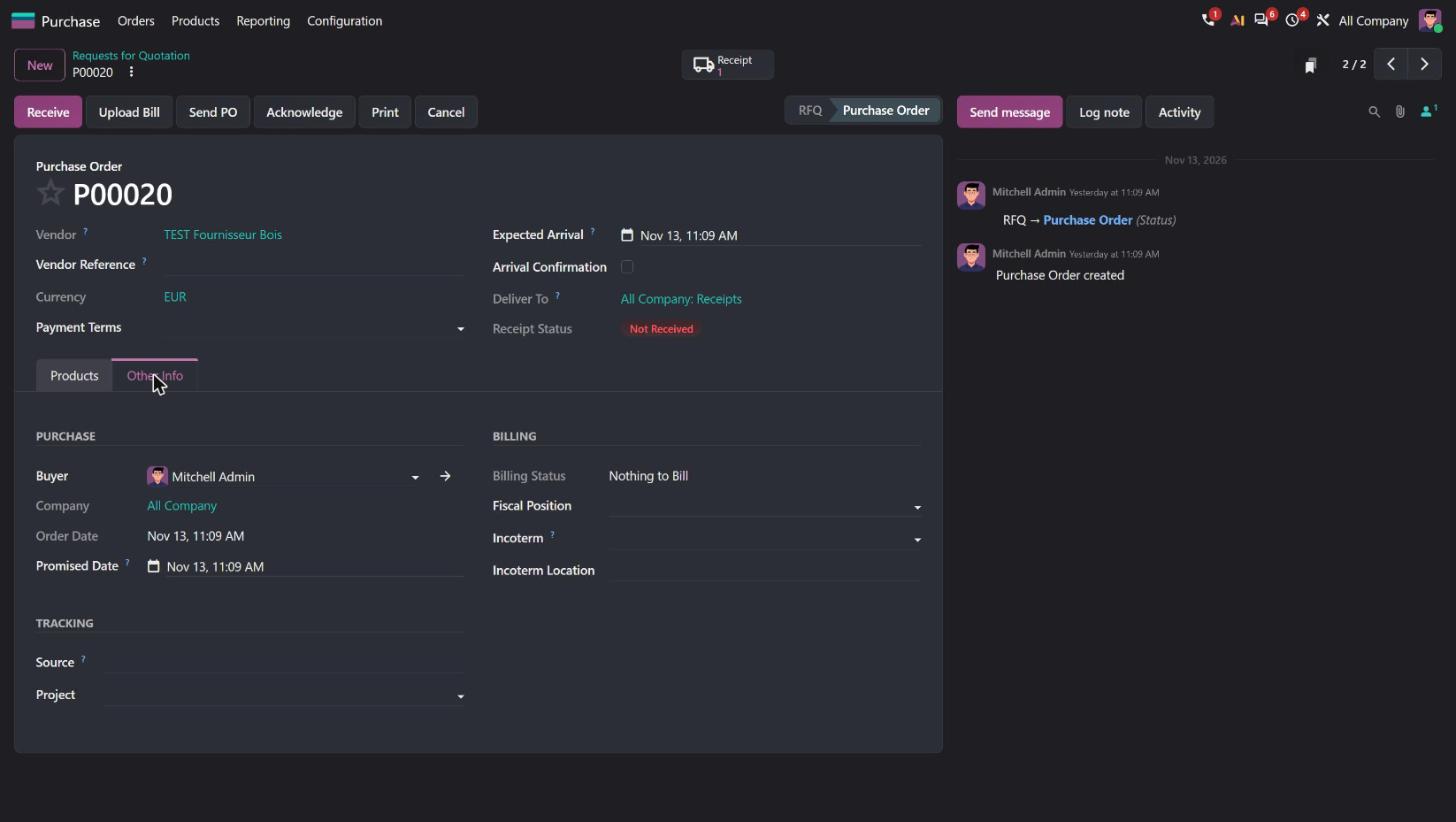
A “Promised Date” (Other Info tab, Purchase section) keeps the date given by the vendor. The expected arrival remains editable in the header, next to “Receipt Confirmation” and the receipt status. According to the release notes, vendor punctuality is calculated on the date the vendor originally promised, and a button recalculates expected arrival dates when the order deadline has passed (“Recompute Expected Arrival when deadline is in the past”).



- Belgian use case
- A vendor announces a one-week delay: the buyer moves the expected arrival for planning purposes, and the delay still counts in the vendor's punctuality score. In Odoo 20, the purchase order keeps a “Promised Date”, separate from the expected arrival.
- Source
- Release notes, Purchase section, “Expected arrival date”, “Recompute Expected Arrival when deadline is in the past”. Odoo source code (GitHub): purchase_order_line.py ↗ ; purchase_order.py ↗. Official Odoo video, 9:31 ↗.
The vendor's Incoterm is carried over to every order
The vendor form has no Incoterm: it is entered on each purchase order.
The Incoterm and its location are set on the vendor form, Sales & Purchase tab, Purchase section. They carry over to its requests for quotation and purchase orders. The Sales section also has its own Incoterm, for customers.
- Belgian use case
- An importer in Antwerp always buys FCA Rotterdam from the same Dutch vendor: the Incoterm appears automatically on every order. In Odoo 20, with FCA – Rotterdam set on the vendor, a new request for quotation picks up “[FCA] FREE CARRIER” and “Rotterdam”.
- Source
- Release notes, Purchase section, “Default Incoterm per vendor”. Odoo source code (GitHub): res_partner.py ↗.
A Quality admin can validate a transfer without prior checks; rejected parts are routed to a dedicated location
A pending check blocks validation of the transfer.
A Quality admin validates a transfer without performing the checks, which are carried out later. A “Failure Location” is chosen on the failed check: non-conforming parts are routed there, and the rest goes into stock.
- Belgian use case
- Example: a truck arrives at 5 pm; the quality manager validates the receipt and carries out the check the next day. One card in five fails the check and is routed to the “Quality Defect” failure location.
- Source
- Release notes, Quality section, “Bypass quality checks” and “Failure location”. Official Odoo videos, 13:26 ↗ and 15:05;, 29:45 ↗ ; webinar, 27:02 ↗.
Barcode
Receipt batching and lot generation from the Barcode app
Each receipt is processed separately. Lots are created outside the Barcode app.
When the same vendor has several receipts expected, Barcode offers to group them into a batch. Lot and serial numbers are generated in bulk from Barcode. A package pre-encoded by the vendor is received with a single scan. Light users can be restricted to the Barcode app.
- Belgian use case
- Example: a spare-parts wholesaler receives three mixed pallets from the same vendor: the warehouse operator scans, accepts the batching and generates two lots of two parts.
- Source
- Release notes, Barcode section, “Batch receipts”, “Bulk lot/serial number generation”, “Packages: pre-encoded contents”, “Light users”. Official Odoo videos, 16:19 ↗ and 16:36 (light users 22:41); webinar, 19:53 ↗, 20:25 and 27:16;, 3:46 ↗.
Minor new features
Manufacturing
- MOs are planned as soon as possible by default; backorders of planned MOs are planned too
- The Manufacturing operation type chooses whether procurement creates draft or confirmed MOs
- Lots and serial numbers generated automatically when the MO is closed
- Put the finished product in a pack from the MO
- “To Replenish” filter in the MO overview
- WO and MO reporting: planned and actual durations, WO cost
- Work center overview with links to WOs and maintenance
- WOs of a blocked work center can be processed
- Employee Gantt in manufacturing
- Product recall by email from delivery lines
- Unbuilding several serial numbers in one order
Shop Floor
- HTML note on the bill of materials visible in the MO and in Shop Floor
- Time spent can be entered without a timer
Inventory
- Expiration dates in the traceability report
- Lot “Transfers” button leading to delivery lines
- Push routes based on destination location
- Landed costs on specific products of a transfer
- “Valuation Adjustments” menu (debug mode)
- Stock aging report from the moves analysis
- Customer lead time per company
- Subscription to a transfer's notifications
- Preview of Barcode instructions on the operation type
- Packaging barcodes managed from the product form
- HS codes (harmonized system) at variant level
- Packagings specific to a variant
- Vendor purchase reference on the receipt
- ZPL location labels; new product, lot and package labels
- Stock and valuation without the Inventory app
- The value of a delivery is updated retroactively when the product cost changes after the fact, for example through a landed cost (COGS, cost of goods sold)
- ZPL printing without an IoT box
Shipping
- Package reference passed on to Sendcloud
- Comparison of shipping rates on the quotation
Purchase
- Improved comparison of alternatives, split quantities
- Cost in the product unit next to the purchase cost in the catalog
- Sections and notes in purchase agreements
- Totals on purchase order sections
- End-customer address on the vendor portal
- Tax included / excluded toggle on the purchase order: see Finance & Accounting
Barcode
- Choice of backorder, product creation by scan, fixed buttons, manual entry of count and lots, mobile login button
Maintenance
- Request Gantt, stages per team, status widget
Repairs
- Direct invoice without a quotation, “Under Repair” status removed, services on the order